
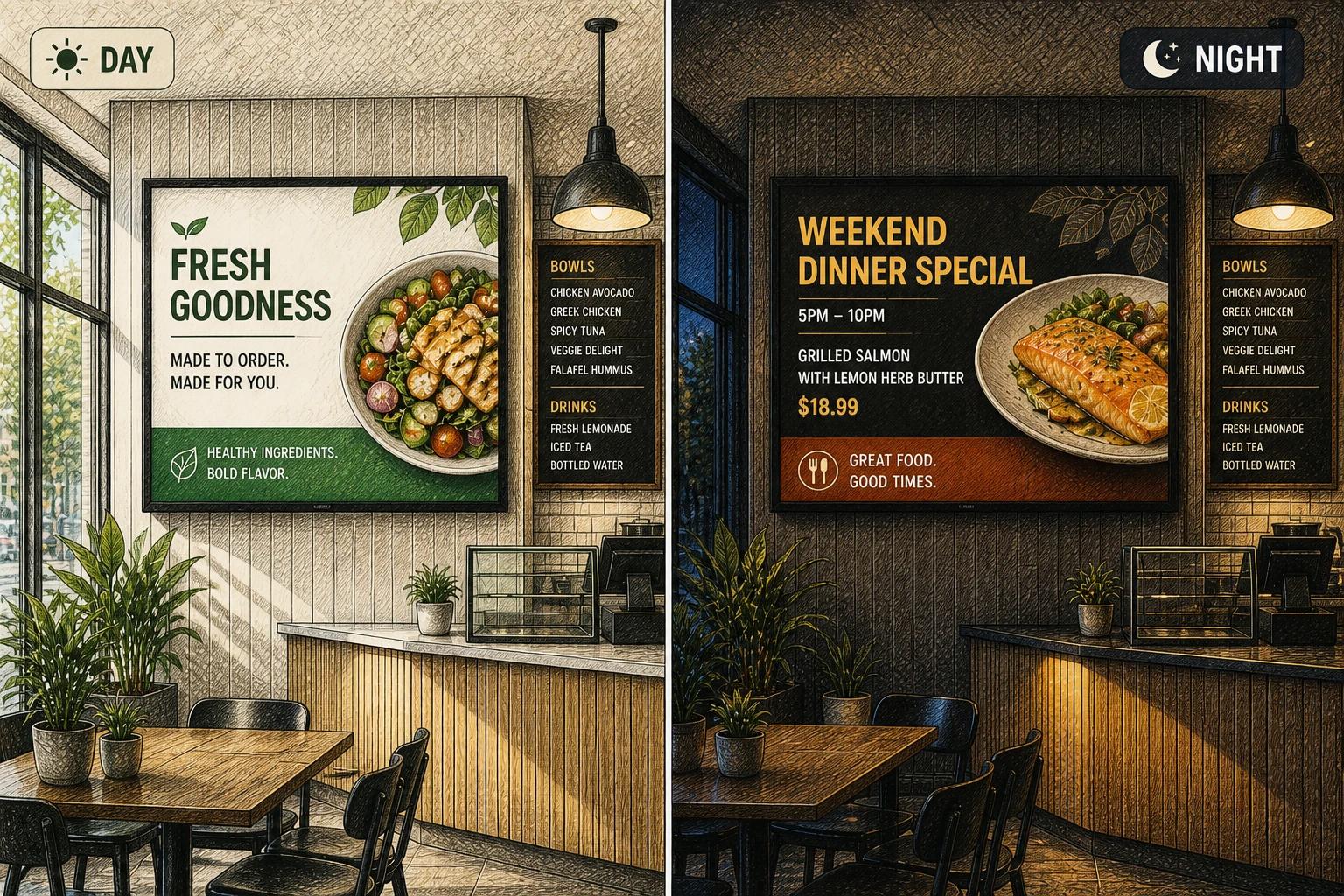
A screen that depends on someone remembering to update it is a screen that eventually goes stale. That is usually the moment teams start asking how to automate digital signage - not because automation sounds advanced, but because manual updates stop working once you have multiple locations, rotating promotions, or time-sensitive announcements.
The good news is that automation does not need to mean complexity. For most businesses, schools, churches, and multi-site organizations, it simply means setting up the right rules so screens stay current without daily effort. Done well, automation reduces mistakes, saves staff time, and keeps content relevant to what is happening right now.
What digital signage automation really means
When people talk about automation, they often picture AI generating everything on its own. Sometimes that is part of the picture, but most digital signage automation starts with smaller, more practical systems. A playlist changes at 11:00 a.m. from breakfast specials to lunch promotions. A lobby screen updates when a spreadsheet changes. A campus display shows different announcements on weekdays than on Sundays. A network of screens turns on and off at the right time without anyone touching each device.
In other words, automation is about replacing repeated manual tasks with schedules, triggers, templates, and connected data sources. It can be as simple as dayparting content or as advanced as rules that change messaging by location, event, inventory status, or weather.
That distinction matters because it keeps the project grounded. If your team starts by trying to automate everything at once, setup gets messy fast. If you start with the repetitive tasks that waste the most time, automation pays off much sooner.
How to automate digital signage without overbuilding it
The fastest way to get this right is to think in layers. First, decide what should always be consistent. Then decide what needs to change by time, place, or condition.
For example, a retailer may want brand visuals and store hours to stay fixed across all screens, while promotions rotate by time of day and by region. A school may keep its safety messages and branding constant, while lunch menus, bell schedules, and event reminders update automatically. A church may use the same welcome design across campuses but swap service times, volunteer announcements, and sermon graphics by location.
That approach prevents one of the most common mistakes: treating every screen like a one-off design file. The more custom and manual each screen becomes, the harder automation is to maintain.
Start with the content types that change often
Not every screen element needs automation. Focus first on content that changes frequently, has a deadline, or depends on live information. Promotions, menus, schedules, event listings, internal announcements, KPIs, room bookings, and social proof are all good candidates.
This is where templates matter. If your team has to redesign every update from scratch, automation breaks down before it starts. A strong template gives you fixed zones for text, images, pricing, logos, or data widgets, so updates can happen inside a controlled layout. That keeps screens looking professional even when the content source is dynamic.
Build a schedule before you build integrations
A lot of teams jump straight into feeds and apps when a simple schedule would solve 80 percent of the problem. Start by mapping what should appear, where, and when.
You might schedule different playlists for morning, afternoon, and evening. You might set weekday content to run in offices and weekend content to run in worship spaces. You might schedule seasonal campaigns to publish and expire automatically.
This alone removes a surprising amount of manual work. It also gives you a clearer picture of where integrations are actually needed. If content changes on a predictable rhythm, scheduling may be enough. If it changes based on live conditions, then a data connection or trigger becomes more useful.
The core building blocks of signage automation
Most digital signage automation relies on four practical tools: scheduling, templates, data feeds, and remote management. The balance between them depends on your environment.
Scheduling controls when content appears. Templates control how content is structured. Data feeds supply fresh information. Remote management keeps screens running and lets teams deploy changes across one or many devices.
The reason these pieces work so well together is that they reduce different types of friction. Scheduling cuts repetitive publishing. Templates cut design time. Data feeds cut copy-and-paste work. Remote management cuts device-level maintenance.
Scheduling and dayparting
This is the easiest automation win and often the most valuable. Dayparting lets you switch content based on time blocks, so a restaurant can move from breakfast to lunch automatically, or a clinic can display check-in instructions during office hours and after-hours notices at night.
The key is to keep schedules readable. If you create too many overlapping rules, troubleshooting gets frustrating. A simple schedule structure usually outperforms an overly clever one.
Connected data feeds
Data-driven signage is where screens start acting less like posters and more like live communication tools. Menus can pull pricing from a source of record. Event screens can display upcoming activities from a shared calendar. Office dashboards can show metrics without requiring a weekly redesign.
But this is also where quality control matters most. If the source data is inconsistent, signage automation only spreads the problem faster. Before connecting any feed, make sure the underlying data is clean, formatted consistently, and owned by someone who will maintain it.
Rules and triggers
Some updates should happen because of an event, not a clock. A trigger might publish an emergency notice, swap messaging when inventory runs low, or promote a location-specific offer when weather conditions change.
This can be powerful, but it depends on context. In a small business with one or two screens, advanced triggers may be more work than they are worth. In a multi-location operation, they can save hours and make messaging more relevant. The right level of sophistication depends on how often conditions change and how costly manual updates are.
Remote screen management
Automation is not only about content. It also includes the operational side of signage. Turning screens on and off, monitoring player health, pushing updates across locations, and standardizing settings all reduce support overhead.
This matters even more as your network grows. A single broken screen is an inconvenience. Ten screens with inconsistent settings become a process problem.
Where automation works best by industry
Retail teams usually get the biggest gains from automating promotions, pricing windows, and location-specific campaigns. Restaurants benefit from menus, limited-time offers, and dayparting. Schools and universities often automate event calendars, cafeteria content, room schedules, and urgent announcements. Churches tend to automate service information, sermon support visuals, volunteer messaging, and campus-specific updates. Healthcare settings often focus on wait time communication, wayfinding support, staff notices, and recurring educational content.
The common thread is not the industry itself. It is the presence of repeatable content changes across screens, teams, or locations. If the same update has to happen more than once, automation is worth considering.
Common mistakes when automating digital signage
The first mistake is automating bad content. If the message is unclear, the design is cluttered, or the source data is unreliable, automation just helps those problems appear faster and more often.
The second mistake is skipping ownership. Automated screens still need a person or team responsible for the content logic. Someone should know which templates exist, which feeds are connected, and what happens when a promotion ends or a schedule changes.
The third mistake is building too many exceptions. If every location has completely different rules, your system becomes hard to manage. It is better to standardize wherever possible, then allow controlled local variation.
The fourth mistake is forgetting the screen context. A lobby display, a menu board, and a back-office dashboard should not all be automated the same way. Viewing distance, dwell time, and audience intent all affect how dynamic the content should be.
A practical rollout plan
If you want automation to stick, start small and choose one repeatable use case. That might be scheduled promotions, a rotating announcement board, or a screen connected to a calendar or spreadsheet. Build the template, test the schedule, and confirm that the source data is reliable.
Then expand to a second use case, ideally one that uses the same logic. Once your team gets comfortable with templates, schedules, and remote publishing, scaling becomes much easier. This is where a modern platform makes a real difference. Tools like HipDeck are designed to help teams automate screens without dragging them into enterprise-level complexity.
A good rule is to automate in the order of impact. Start with the updates your team repeats most often. Move next to the content where timeliness matters most. Save advanced triggers and edge cases for later, once the core system is stable.
The best automated signage does not call attention to itself. It just keeps screens accurate, useful, and current while your team focuses on the work behind the message instead of the mechanics of updating it.