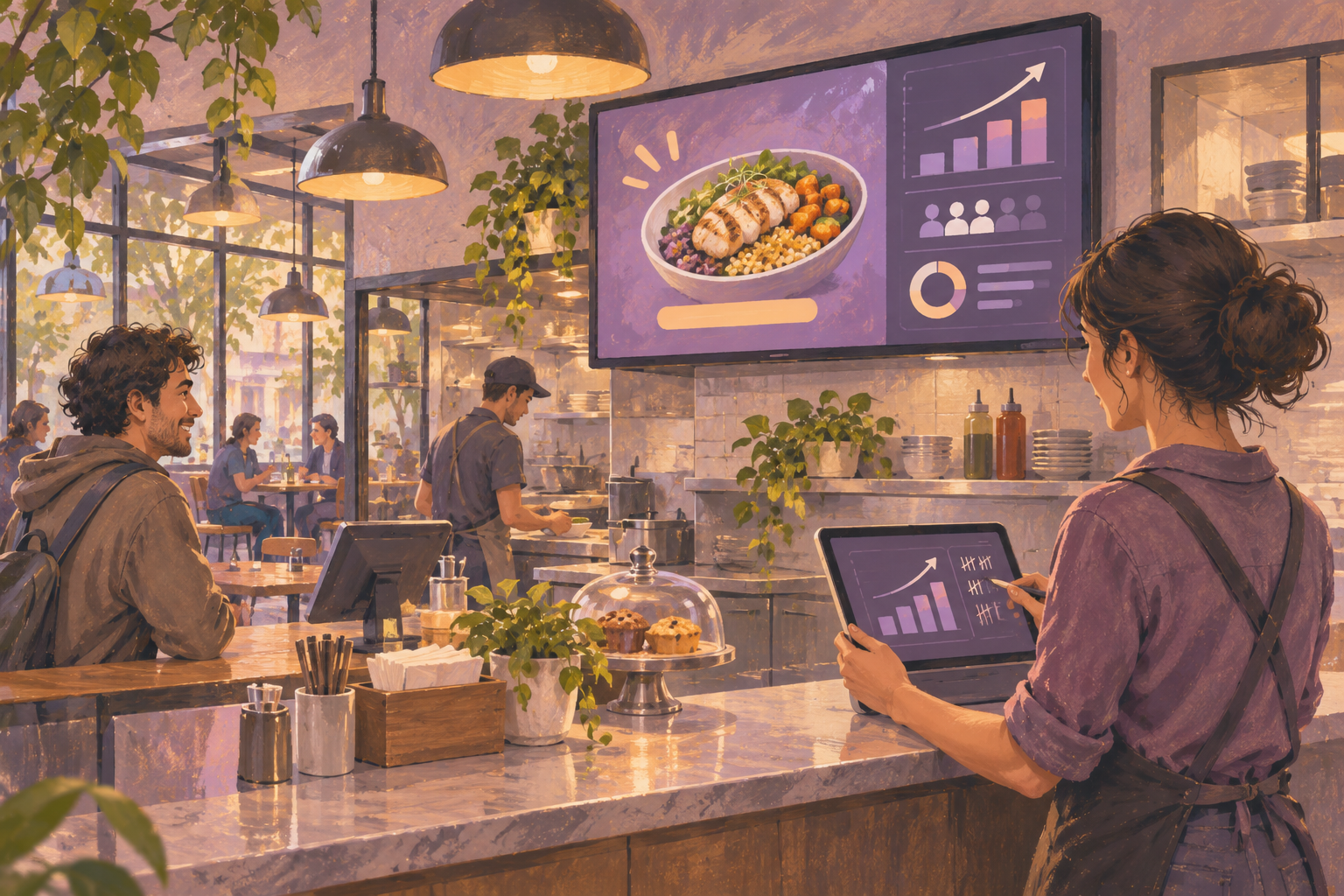
Start with one offer customers can act on while they are at your restaurant. A counter-service café could use the screen near the queue to promote an afternoon drink-and-pastry combo. Choose the action you want guests to take, decide how staff will count it, and check that the offer is easy to order before the slide goes live.
Choose an offer staff can fulfill
Write down the item, qualifying purchase, hours, and any limits. Then ask the shift lead and cashier to walk through a test order. If the offer only works after a manager override or depends on a pastry that often sells out, simplify it before adding it to the screen.
Example slide for a staffed counter: “Afternoon combo · Any small drip coffee + one featured pastry · Weekdays, 2–4 p.m. · Ask for the afternoon combo.” Add the approved price next to the item names and confirm the register shows the same price. Put the offer where customers see it before placing an order. Keep the main menu available while the offer runs.
Decide what you will count
- Counter order. Use a dedicated register button or promotion code if your POS supports it. Otherwise keep a simple shift tally: eligible transactions, combo redemptions, and any time the offer was unavailable. Show the same instructions to each cashier.
- Online order or signup. Use a QR code if guests can complete the action on a phone without slowing the line. Give it a label such as “Order for pickup” and include a short URL as an alternative. Verify the destination on a phone using mobile data.
- Web visits from the screen. Give the destination link its own campaign tags, such as utm_source=counter_screen, utm_medium=qr, and utm_campaign=afternoon_combo. Use a separate tag for each placement if you want to compare screens.
Campaign-tagged visits help you identify traffic from the QR link. A person can open the page and leave without placing an order, and repeat visits can come from the same person. If your checkout tracks completions, check those separately. See Google’s campaign URL documentation.
Schedule the offer and rehearse taking it down
- Build a promo slide with the item, approved price, hours, and one instruction. If the campaign uses a QR code, upload the approved code as an image and scan it from the customer’s viewing position. HipDeck documents this upload path in its Image Elements guide.
- Use a supported player or a compatible browser and pair the display with the code shown on the screen. Test the actual TV and player with your artwork because legibility and browser behavior can vary. For device setup, see Add Your First Screen.
- Assign the promo playlist to the offer window and verify that the usual content returns afterward. Have the shift lead rehearse switching back early if the pastry sells out, then tell the cashier to retire the offer. HipDeck’s scheduling guide explains time slots and date ranges.
Review comparable shifts before repeating the offer
Compare similar weekdays and hours. Record eligible orders, redemptions, stockouts, and other changes such as a register prompt or a social post. If you share the same offer elsewhere, use a separate code or tag when possible. If staff prompt every customer, treat the outcome as a result of the overall promotion.
For illustration, 12 redemptions across 80 eligible transactions is a 15% redemption rate. That tells you how often the offer was used during that shift. Estimating sales lift would also require a comparable baseline and an account of other changes. Review whether the offer displaced existing purchases and whether the resulting margin made the work worthwhile.
Use the HipDeck trial to test one offer on one screen. HipDeck lists seven days with one included screen and no credit card required. Growth is $8 per screen per month. Start with a register tally and one comparable shift. For the broader display rollout, see the restaurant signage setup guide.