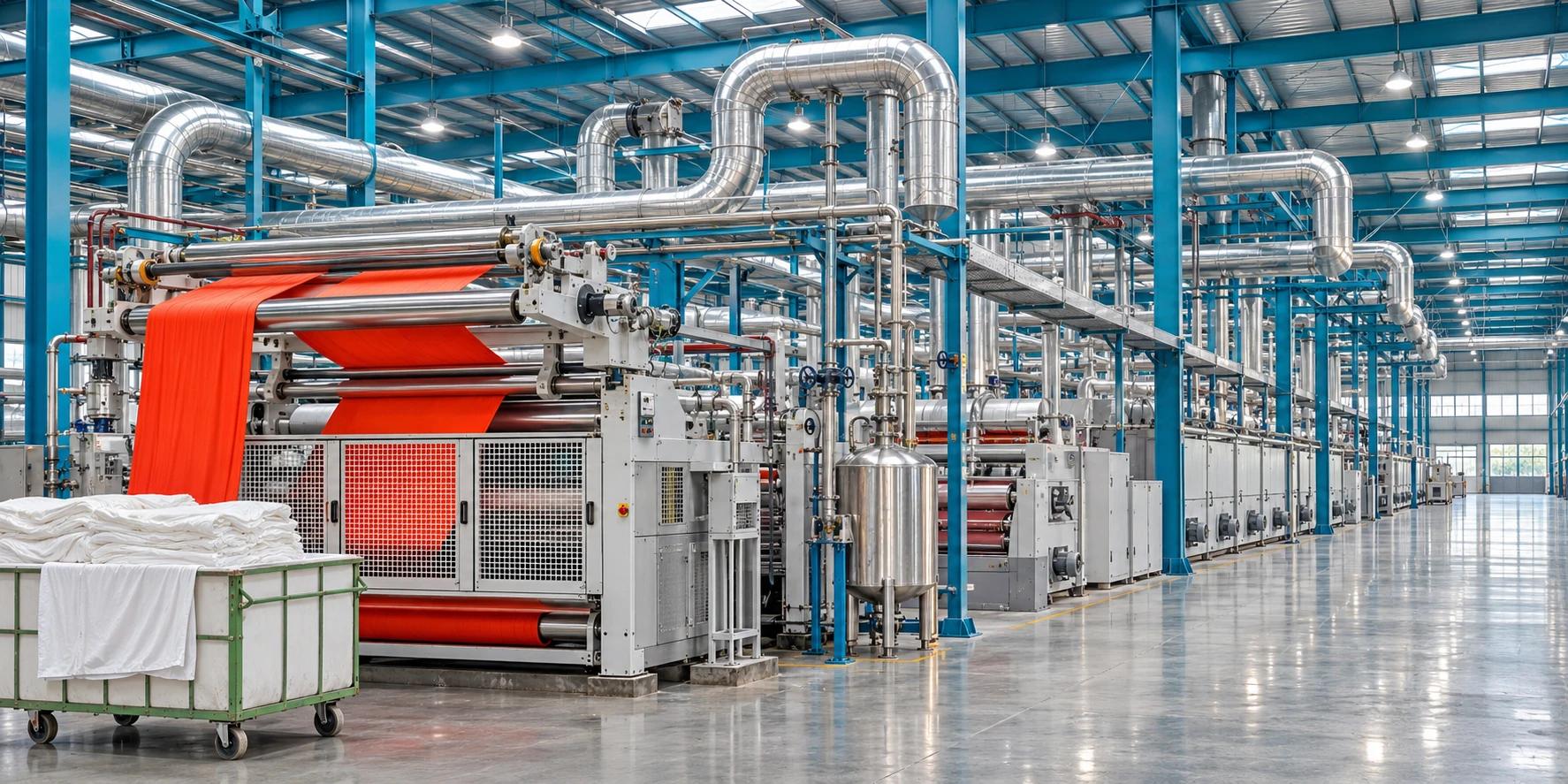
Digital signage for manufacturing works best when each screen answers a question someone on the floor needs answered: What are we making? What changed since the last shift? Who owns the next action? Start with those questions, then choose the display, content source, and update routine.
A factory screen can show a production summary, a shift handover, a quality reminder, or a break-room announcement. Those jobs need different layouts and update frequencies. Putting all of them into one fast-moving slideshow usually makes the most useful information harder to find.
This guide explains what to show in each area, how to build a useful production board, and how to pilot one screen before connecting more data or expanding across a plant.
Give each factory screen one primary job
Production areas: current work and next action
Keep the operational view focused on one line, work area, or team. Useful fields include the current job, the plan for the shift, completed output, and a short note about the next changeover. Show the source and last update time so people can judge whether the information is current.
A board that requires workers to stop and interpret several charts may belong in a huddle area rather than beside active equipment. Choose the viewing location with the people who use it and the team responsible for the space.
Shift handover areas: changes that need an owner
Use a handover screen to summarize changes, outstanding actions, and who to contact. Avoid turning it into an unedited copy of a long logbook. A short entry should say what changed, what happens next, and which role is responsible.
Break rooms: staff information with an expiry
Break-room screens can carry training dates, planned shutdown notices, staff announcements, and recognition. Make the relevant date easy to see and remove expired items. Repeat updates across the shifts that need them rather than assuming a daytime message reached everyone.
Reception: visitor instructions
Give visitors a clear check-in step, a contact point, and site-approved directions. Keep the public-facing playlist separate from internal production information. A reception screen should not expose customer orders or the same operational dashboard used on the floor.
Build a production board people can read
Start with a single full-screen view rather than a dense management dashboard. Use a large area label and three or four meaningful fields. Keep labels consistent so an operator does not have to relearn the layout each shift.
Illustrative example — Assembly Line A, day shift:
- Shift plan: 320 units.
- Completed: 280 units; remaining: 40 units.
- Next action: prepare the fixture for the next scheduled job.
- Owner: shift lead. Last reviewed: 10:15 a.m. Source: supervisor’s shift log.
These are example values, not a customer result or a live HipDeck integration. The board should use your approved operational definitions. Specify whether “completed” means assembled, inspected, accepted, or packed; otherwise different people may read the same number differently.
Do not infer whether a line is ahead or behind from a shift-end target alone. If progress is evaluated during the shift, display the agreed expected output at that point in time and account for planned breaks and changeovers.
For layout, put the line name and shift at the top, the key numbers in the center, and the action, owner, source, and timestamp along the bottom. Use text labels as well as colors. Test the smallest text from the actual viewing position before adding more content.
Choose how the information reaches the screen
Manual updates are a useful first step
A manually maintained board can establish whether the content is useful before you invest in integration. Give one role responsibility for updating it at an agreed point in the shift. Include a visible review time and decide what the team should do when that time becomes stale.
A static slide is suitable for a shift summary or a scheduled notice. It is a poor choice for information that people must treat as continuously current unless there is a reliable update process behind it.
Dashboard embeds need a data and access plan
HipDeck documents an Embed Element for displaying dashboard content. The source platform still controls access, refresh behavior, and whether its view can be embedded. A dashboard appearing in a desktop browser does not establish that it will work on an unattended player.
Review HipDeck’s dashboard embed guide
Before connecting a dashboard, identify its data owner, refresh interval, sign-in requirements, and behavior when the source stops updating. Test the actual player through a restart and an expired session. If authentication needs additional configuration, resolve that before rollout.
Do not make sensitive production information public simply to obtain an embed link. Microsoft’s Power BI documentation states that Publish to web makes reports accessible without authentication and can expose underlying data. Use an access approach approved for the information; secure embedding requires its own compatibility check.
Microsoft: Power BI Publish to web and its data-access implications
A screen-management platform displays information; it does not automatically provide a connection to your manufacturing execution system, ERP, PLCs, or machine sensors. Confirm the exact data path, permissions, and maintenance responsibility instead of treating a generic embed capability as a native connector.
Make shift handovers actionable
Use the same fields for every handover so supervisors know where to look. Keep detailed records in the system or process that already owns them, and use the screen for the short summary that the next team needs.
- Change: what is different from the normal plan?
- Action: what should happen next?
- Owner: which role should confirm or complete it?
- Review time: when should this note be updated or removed?
Example: “Packing sequence changed for the afternoon shift. Review the revised sequence at the huddle. Owner: packing lead. Remove after the afternoon briefing.” This communicates a specific next step without publishing an entire customer order.
For routine reminders, use only current site-approved wording. General signage is a supplementary communication channel; keep required instructions and established emergency procedures available through the processes your site already relies on.
Keep essential information visible
A person arriving halfway through a loop should not have to wait through staff announcements to find the production status they need. Keep the primary production view continuous where that is its main purpose, and use a separate playlist or display for longer announcements.
For a break-room pilot, a possible starting loop is a 20-second shift update, a 15-second training notice, a 15-second site announcement, and a 10-second recognition slide. That creates a 60-second loop. These timings are starting suggestions, not measured results; adjust after watching people read the screen.
HipDeck’s scheduling guide describes assigning playlists to time slots by day and time, with optional date ranges. Use that to separate shift-specific content, then test boundaries and gaps. Pay particular attention to a night shift that crosses midnight.
Set up and review playlist schedules
Plan for stale data, network loss, and restarts
Different failures need different responses. A player may be online while its source dashboard is stale. A static board may still be readable after network loss but contain yesterday’s information. Define how a viewer can recognize each case.
- Source data stops refreshing: show or check the source timestamp and contact the data owner.
- Player loses connectivity: use the agreed fallback and avoid presenting old numbers as live status.
- TV or player restarts: confirm the intended input and content return, or document how staff reopen them.
- Scheduled content is wrong: check time zone, shift boundaries, assignment, and published changes.
HipDeck’s offline guide distinguishes cached content from online-dependent content. Downloaded images and text can remain available, while live dashboards and embeds require connectivity. Test your own playlist after its assets have downloaded; do not assume the live-data view will survive an outage.
Check HipDeck’s offline-playback limitations
Run a one-screen manufacturing pilot
Choose one communication problem and write down what success would look like before installing the screen. For example: “The incoming shift can identify the latest plan and the role responsible for open actions.” That is easier to assess than an unsupported promise to improve overall productivity.
- Choose the location and audience with the shift lead. Check sightlines, glare, mounting, and environmental conditions with the appropriate site team.
- Name a content owner and a backup. Agree who reviews the numbers, who publishes changes, and when content expires.
- Build one simple playlist with approved, non-sensitive information. Start with manual content if the data connection is not ready.
- Pair a supported player, assign the playlist, and publish. Check the physical display rather than relying only on the dashboard preview.
- Observe each relevant shift. Ask people to find the latest update and explain the next action.
- Test a network interruption, a restart, and a schedule change. Record the recovery process.
Keep a short pilot log: confusing labels, missed updates, stale messages, and time spent maintaining the board. Use that evidence to decide what to simplify or automate. Do not attribute changes in output or quality to the screen alone when staffing, materials, or the production mix also changed.
Create your first HipDeck playlist
What does a small pilot cost?
Separate the display, player, mounting, installation, network work, and staff time from the software subscription. Ask for site-specific hardware and installation costs rather than assuming a consumer TV is appropriate for every production environment.
As checked on November 3, 2026, HipDeck lists Growth at $8 per screen per month. One screen is therefore $8 per month for software; three are $24. These calculations exclude hardware, installation, and applicable taxes. The listed trial includes one screen for seven days with no credit card required.
Start with one useful factory screen
You do not need to connect every machine to learn whether a screen helps a team. Begin with a clear shift update or a focused production summary, assign an owner, and test it where people work. Add data connections only when you know which information is worth maintaining.