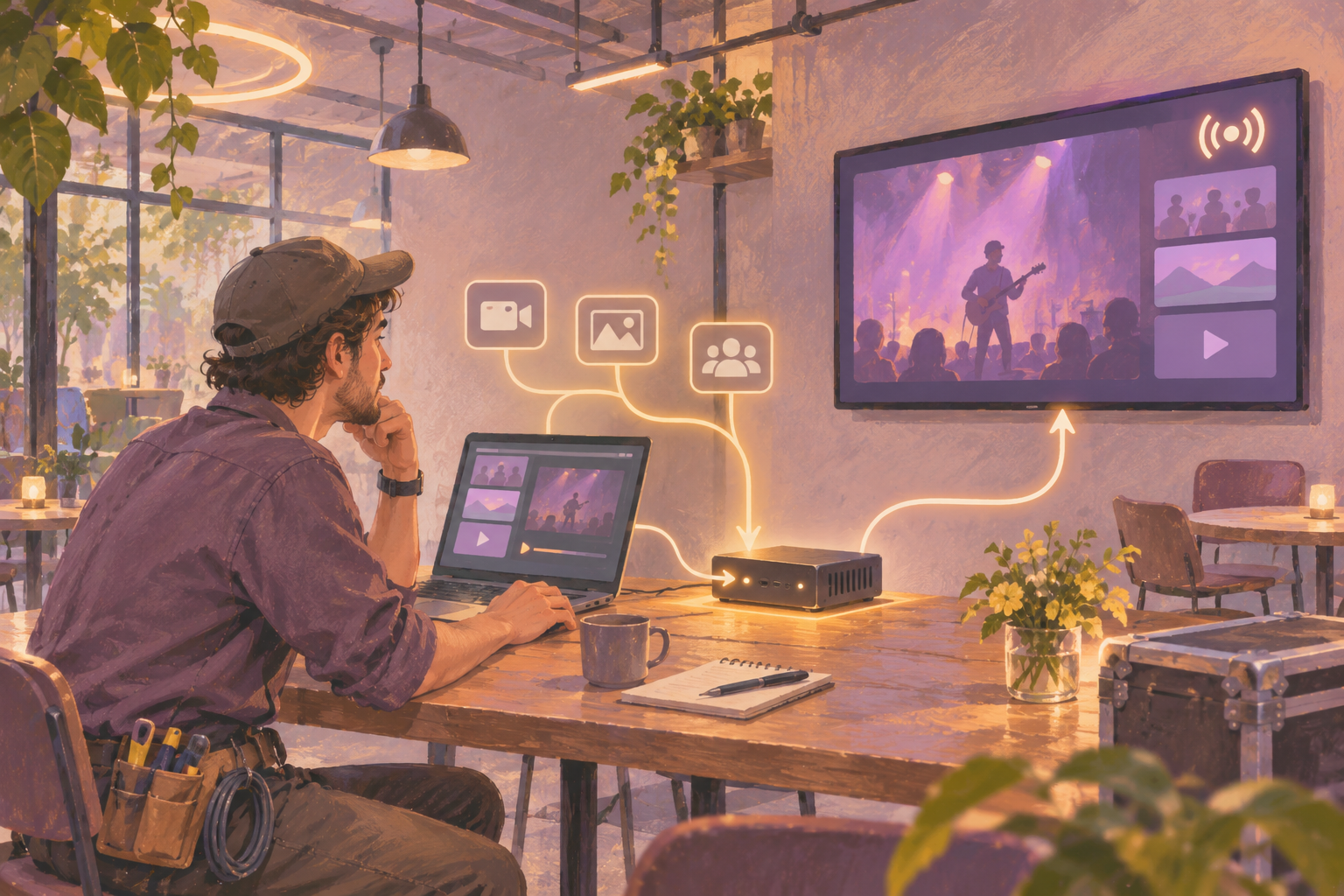
Choosing the best encoder for digital signage starts with the source. A camera or an AV mixer may need an encoder to turn its live output into a network stream. A finished promotional video, menu or announcement generally follows a different route: a signage player displays the content on the TV.
Before buying another box, write down what produces the picture, how that picture will travel, and what will receive it. That short exercise can prevent an encoder purchase that leaves you without a working display.
Encoder, decoder and signage player: three different jobs
A live-video encoder takes a source such as HDMI from a camera or production mixer, compresses the picture and audio, and sends a stream over a network. It belongs near the source. Check the input connector on the exact model; an HDMI encoder is not automatically an SDI encoder.
A decoder receives a supported network stream and turns it into a display output. For example, Magewell describes its Pro Convert decoder range as bridging IP streams to monitors and other AV equipment. The receiver is part of the purchase decision, even if the screen already has an HDMI socket.
A signage player runs the display content: slides, uploaded media, web content or supported streams. It may be a separate device or software running on suitable display hardware. A player does not automatically accept a camera plugged into HDMI; its HDMI port may be an output.
The word encoder also appears in video-editing software. Exporting an edited file and encoding a continuous live source are separate tasks. If your problem is a prerecorded clip that stutters, investigate the file and playback device before shopping for live-streaming hardware.
Choose the route that matches your content
- Recorded promotions or announcements: export a suitable video file and use the signage platform's media workflow. You do not need a live HDMI source running throughout the day.
- A presentation, menu or schedule that already exists online: investigate a supported web or embed route. Capturing a laptop's video output may add equipment and another device to maintain.
- A live camera feed in another room: plan the encoder, network transport and receiver together. Confirm whether the destination will display only the feed or combine it with signage.
- A live source connected to a nearby TV: ask your AV installer whether a direct connection meets the requirement. Network distribution adds value when the location, distance or number of destinations calls for it.
For ordinary HipDeck display content, start with the supported hardware guide. It documents player routes including Android devices, streaming sticks, mini PCs and browsers. For a mini PC, the setup guide describes running the HipDeck screen URL in Chrome, using full-screen or kiosk mode, and arranging startup behavior.
Write a compatibility brief before asking for quotes
Send each supplier the same brief. Ask them to identify the exact encoder, receiver and firmware they propose, then explain how each connection in your route will work. A brand name or a list of protocols alone is insufficient.
- Source: device model, physical output, resolution, frame rate and audio connection. State whether the source changes during an event.
- Destination: exact TV and receiver or player model. State whether the picture fills the screen or appears beside announcements.
- Transport: local network or internet, wired connections available, and the receiving system's required protocol, codec and authentication method.
- Operation: who starts the feed, how staff know it has failed, what viewers see during a failure, and who restores service.
- Acceptance: the maximum delay your use case can tolerate, the text viewers must read, the required audio behavior, and a recovery test.
Input specifications and encoded output specifications deserve separate checks. Magewell's Ultra Encode HDMI specifications, for example, list certain 4K input modes while the main encoded output list tops out at 2048×1080 or 1920×1200. The same page lists H.264/H.265 encoding and several transport protocols, with restrictions on concurrent streaming sessions. This is an example of how to inspect a specification, not a claim that the device integrates with HipDeck.
Ask the receiver supplier to confirm the complete combination in writing: protocol, codec, resolution, frame rate, audio and access requirements. An encoder supporting a protocol does not establish that a particular signage app can receive it.
Worked example: a community venue with an overflow room
Consider a hypothetical community venue. Its foyer screen normally shows event times and announcements. During a talk, staff want an overflow-room TV to show the speaker. These are two content requirements, and the live requirement needs its own acceptance test.
First, keep the foyer playlist independent while you investigate the live route. For the overflow room, record the production mixer's output details and identify the receiving device. Ask the AV supplier to demonstrate that source reaching that TV over the venue's actual network.
If the venue wants event details beside the speaker, add that requirement before ordering. A decoder delivering full-screen HDMI video does not, by itself, establish that the destination can compose a layout with a live feed and signage. Request a demonstration of the combined layout.
Write a simple handover card: source power-on order, streaming start procedure, expected picture and audio, failure contact, and the action to take when the talk ends. Label it with the equipment models and settings actually used in the pilot.
Test the complete route before rolling out
- Use representative content. Include movement, the smallest text that matters, and spoken audio if it is required. Inspect the result from the intended viewing position; a successful connection is only the first check.
- Measure delay against your own requirement. Show a changing clock in the source picture and compare it with the received picture. Record the observed delay and test conditions. This is a proposed test, not a benchmark result.
- Rehearse interruptions. Stop and restart the source, briefly disconnect the network under controlled conditions, and restart the receiver. Record which steps require staff intervention.
- Check unattended playback. Reopen the player without a staff member already signed into the content service. Check for login prompts, permission screens and audio autoplay restrictions.
- Approve the fallback procedure. Decide what staff should put on screen when the feed is unavailable and rehearse switching to it. Confirm automatic fallback separately if a supplier offers it.
- Repeat at the intended scale. Add the planned destinations and test during representative network use. Keep a record of settings so the installer can reproduce the working configuration.
Where HipDeck fits
HipDeck can manage the surrounding signage content, such as announcements, schedules, images and recorded videos. Its Embed Elements guide documents HTML and iframe embeds, while also describing permissions, frame restrictions and sandbox limitations.
An embeddable web player and a raw encoder stream are different interfaces. Before buying equipment for a HipDeck layout, ask support to confirm the exact live source, delivery method and playback device. Native RTSP, SRT, NDI or arbitrary encoder compatibility is not established here. Test the proposed route on the actual screen before committing.
For the signage portion, start with HipDeck's trial: the current pricing page offers one screen for seven days with no credit card required. Growth is listed at $8 per screen per month. Encoder hardware, any receiver, network work and external streaming services need their own budget.
Build one useful playlist and run it on the intended display. If live video is essential, bring the compatibility brief and pilot results into that review. Buy the encoder only once you can describe—and demonstrate—the complete route from source to screen.